Hi all👋,
It’s been a while! We’re excited to share some of the latest improvements our team has been working on to make your experience with PitchPrint even better.
What's new🚀,
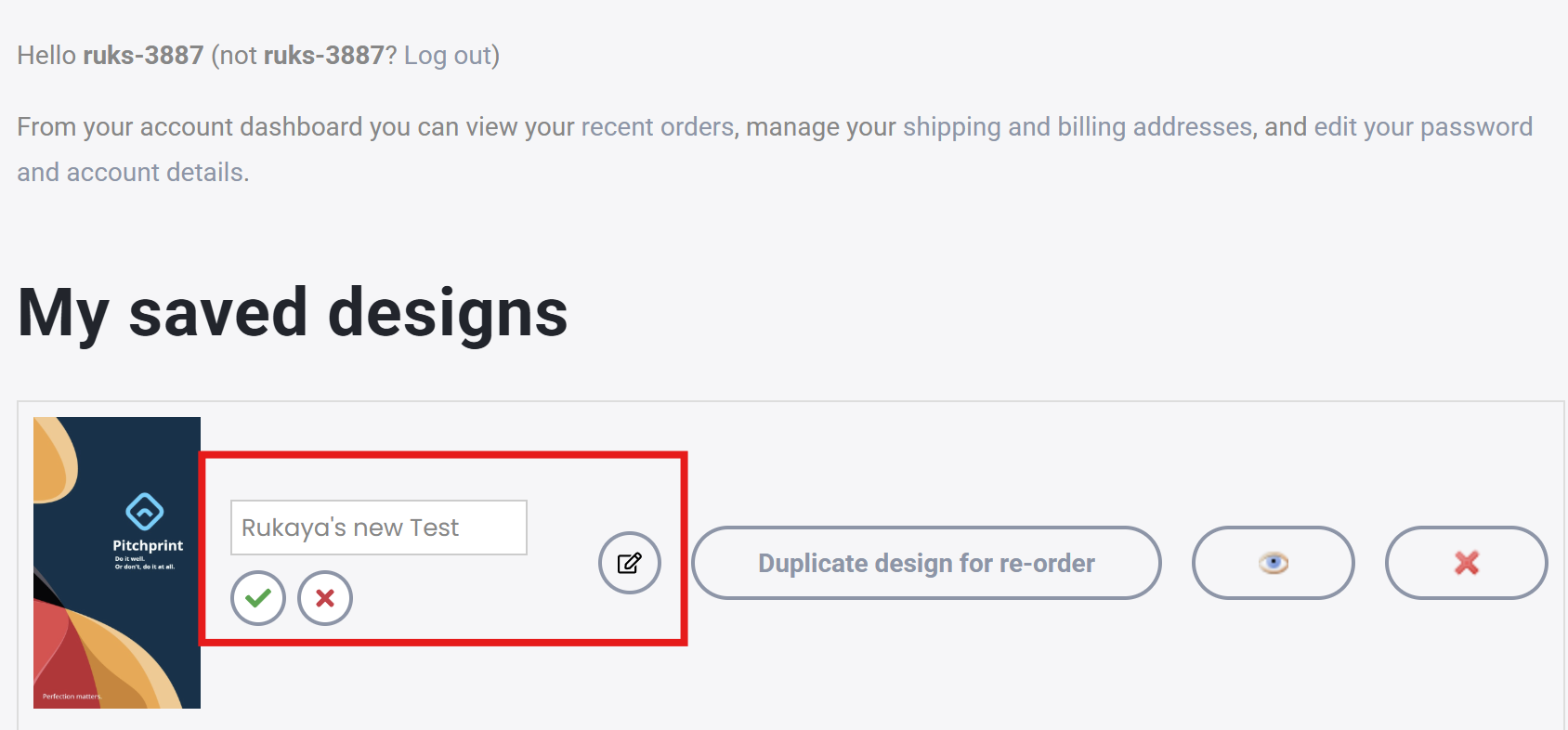
Rename in My account page - Keeping track of your designs just got a little easier. Until now, the My Account page allowed you to duplicate, resume, delete, and preview your designs and projects, but finding a specific one could become tricky once you started building up a larger list.
You can now rename your designs or projects directly from the My Account page. Give your projects names that make sense to you, so they’re easier to recognise at a glance and keep organised.
It also makes it much easier to find the design or project you’re looking for and re-order your items to keep everything in the right place.
Navbar for page Thumbnails - Working with designs that have a lot of pages just got easier. Previously, the page thumbnails at the bottom of the canvas could get quite crowded once a design had more than 20 pages. This made it difficult to get to the later pages and, once there, just as difficult to get back to the earlier ones.
We’ve now added a navigation bar to the page thumbnails. Once a design reaches 13 pages, navigation arrows will appear, making it much easier to move through the pages.
Use the arrows to move forward to later pages or back to earlier ones. As you scroll in either direction, the opposite arrow will become available, so you can easily move back and forth through all the pages in your design.


Copy items from design to another - Previously, the Copy option in the right-click menu only allowed you to copy an item from one page and paste it onto another page within the same design.
We’ve now extended this functionality to the front end of the editor, so you can copy an element from one design and paste it into a completely different design. This makes it much easier to reuse elements across different projects without having to recreate them from scratch.
Simply copy an element from one design, open another design, and paste it onto the canvas. It’s a small update, but one that should make working across multiple designs much easier and more convenient.
Copy button - We’ve made copying elements a little easier and more obvious. Until now, the only ways to copy an item were to use Ctrl + C or right-click an element and select Copy. While both options work well, they weren’t always easy for users to discover.
We’ve now added a dedicated Copy button to the editor, making the option much more visible and easier to access. It also sits right alongside the existing Paste button, so users can quickly copy and paste elements with just a click.
It’s a small change, but one that makes these everyday tools much easier to find and use.
Keep text in Capitals - We’ve added a handy new option for customers who want more control over how their text is formatted. If a design uses a specific capitalisation style, customers can now apply that style directly within the front-end designer when editing a field.
Using the button shown below, customers can choose the capitalisation rule they want to use. Once selected, the editor will remember that setting and automatically apply it to any edits made to that field afterwards.
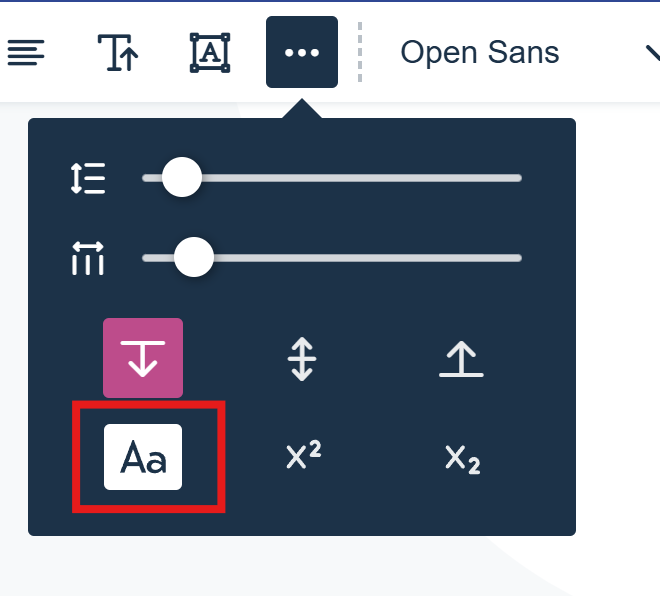
The rule is applied when the customer selects it in the designer, and will then be maintained for each consecutive edit. This makes it easier to keep text formatting consistent without having to manually adjust the capitalisation each time.
That’s a wrap for this week, folks! 🎉
If you’d like to take advantage of any of these new features, simply reach out to us at support@pitchprint.com, and we’ll be happy to enable the features you’re interested in on your domain.
That’s all for this release! We’ll be back with more updates and improvements in the next one.
Until then, have a wonderful weekend!
The PitchPrint Team 🤗
